Confused want to display HTML tags in posts? Here I will explain how to create html tags in HTML. Replace some HTML script like the one below:
1. "<" Replaced by "<",
2. ">" Replaced by ">",
3. "&" Replaced by "&",
4. "quotes 2" Replaced by """,
5. "±" Replaced by "±",
6. "Spasi" Replaced by " ",
7. "©" Replaced by "©",
8. "®" Replaced by "®".
look after your result, your HTML script will appear in your posts.
This article hopefully useful ^.^
Showing posts with label ::Blog::. Show all posts
Showing posts with label ::Blog::. Show all posts
Sunday, July 4, 2010

Create Link in Blog
If you create an article for the post, then in his want of make a link, say the article talks about a business that you follow on a website on the internet, then you want the article invites readers to visit websites that you describe. Suppose that in the article, there are words like your "If you are interested please click here", well to make a link from the words please follow the following steps:
1. Block the words you want in the created link, the example above is
click here.
2. Click on the icon picture like this which is located on the toolbar, then after that will appear in a new window http:// writings are shaped like the image below:
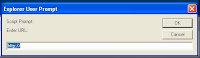
3. Fill in the text box that appears with a website address you want, for example: http://facebook.com
4. Click OK. Finish
Create Links with new window
Maybe you have thoughts, if you make a reader clicks on a link then, you worry that our blog visitors will leave our blog. To minimize the problem, can be done by making the new window, so when a visitor clicks on one link that we make, we do not blog pages are crushed with a new page but what happens is that your blog page still exist and new pages will appear at the click separately. When you click it, it will generate a new window. To create a link like this can be done by way of:
1. If already do I create a link like the above description, click on the Edit HTML tab on the toolbar.
2. In earlier writings we link will display the code like this (writing samples click here in links to facebook.com :
<a href="http://facebook.com">Click Here</a>
So here you have to add a frill HTML code target = "new" or target = "_blank" at the beginning or end of code. Example of code that has been in the modification are:
<a href="http://facebook.com" target="new">Click Here</a>
or :
<a href="http://facebook.com" target="_blank">Click Here</a>
Please try, hopefully useful ^_^
1. Block the words you want in the created link, the example above is
click here.
2. Click on the icon picture like this
 which is located on the toolbar, then after that will appear in a new window http:// writings are shaped like the image below:
3. Fill in the text box that appears with a website address you want, for example: http://facebook.com
4. Click OK. Finish
Create Links with new window
Maybe you have thoughts, if you make a reader clicks on a link then, you worry that our blog visitors will leave our blog. To minimize the problem, can be done by making the new window, so when a visitor clicks on one link that we make, we do not blog pages are crushed with a new page but what happens is that your blog page still exist and new pages will appear at the click separately. When you click it, it will generate a new window. To create a link like this can be done by way of:
1. If already do I create a link like the above description, click on the Edit HTML tab on the toolbar.
2. In earlier writings we link will display the code like this (writing samples click here in links to facebook.com :
<a href="http://facebook.com">Click Here</a>
So here you have to add a frill HTML code target = "new" or target = "_blank" at the beginning or end of code. Example of code that has been in the modification are:
<a href="http://facebook.com" target="new">Click Here</a>
or :
<a href="http://facebook.com" target="_blank">Click Here</a>
Please try, hopefully useful ^_^
Create Web Visitor in Blog
Creating timers are common visitors at the show in many websites, and in fact how very easy because many free services that provide the facility.
What is Web Counter visitor counter or automatic?
Web counters are additional applications on the web or blog that serves as a counter of visitors who visit our blog. This counters the workings of all kinds, ranging from counting page views to unique Visitor.
Well if you already know what I mean and interested to make it on the blog or
Websites you please follow the steps below:
1. Open website http://www.wowcounters.net
2. Then Click Link ** Click Here to Sign Up for your Free Counter ** available on the Website
3. Then the appropriate Form Fill your personal data and select a Style and Sign Up
4. Then Copy the HTML Code and apply it on your blog, by way of the Layout menu -> Page elements and then add a page elements continue to select the HTML / Java Script
Easy enough right? if you want to try using other web because http://www.wowcounters.net felt less attractive in terms of graphical display automatic timers, please visit some of the web address below:
Sites that provide Counter and Statistics Blog:
1.http://www.easycounter.com
2.http://sitemeter.com
3.http://blogaja.com
4.http://hitstats.com
5.http://oggix.com
Good Luck..
What is Web Counter visitor counter or automatic?
Web counters are additional applications on the web or blog that serves as a counter of visitors who visit our blog. This counters the workings of all kinds, ranging from counting page views to unique Visitor.
Well if you already know what I mean and interested to make it on the blog or
Websites you please follow the steps below:
1. Open website http://www.wowcounters.net
2. Then Click Link ** Click Here to Sign Up for your Free Counter ** available on the Website
3. Then the appropriate Form Fill your personal data and select a Style and Sign Up
4. Then Copy the HTML Code and apply it on your blog, by way of the Layout menu -> Page elements and then add a page elements continue to select the HTML / Java Script
Easy enough right? if you want to try using other web because http://www.wowcounters.net felt less attractive in terms of graphical display automatic timers, please visit some of the web address below:
Sites that provide Counter and Statistics Blog:
1.http://www.easycounter.com
2.http://sitemeter.com
3.http://blogaja.com
4.http://hitstats.com
5.http://oggix.com
Good Luck..
Tuesday, June 22, 2010
Create ReadMore in Blogger
Here I will explain how to create Readmore on bloggers, as we know, if there is no read more, then your blog will be a long and sloppy, I create one by editing the html in your template, and add a script on posts you've written. way quite easily. first go to 'draft' and select 'edit html'
after that you download the template first before adding the script, by selecting 'Download full Template', then select the location where you want to backing up template.
The next check list "Expand Widget Templates", like the one in the picture below:
then input this script above <head>
<style>
<b:if cond='data:blog.pageType == "item"'>
span.fullpost {display:inline;}
<b:else/>
span.fullpost {display:none;}
</b:if>
</style>
and search
<p><data:post.body/></p> or <data:post.body/>
with Ctrl + F on your browser.
then, add the script just below that :
<b:if cond='data:blog.pageType != "item"'>
<a expr:href='data:post.url'> Read More..</a>
</b:if>
"Readmore" word can be replaced in accordance with your wishes, can be replaced with a "Continue Reading" or up to you.
The first step is completed. next to the tab "Settings", select "Format". then the entry box template, fill in the script as follows:
<span class="fullpost">
</span>
Then click on "Save Settings", With This setting, if you want create new post, the text above will appear automaticlly.
Now Try edit your post, and add the script below :
<span class="fullpost">
where you'll cut your post, and became Readmore. and at the end of the post, you add this script:
</span>
maybe this way is a bit complex, but with this blog we'll be able to become more orderly. one another. if you want to change the template again, then you must edit the html on the template just by means of the above. okay?
good luck ^ ^
after that you download the template first before adding the script, by selecting 'Download full Template', then select the location where you want to backing up template.
The next check list "Expand Widget Templates", like the one in the picture below:
then input this script above <head>
<style>
<b:if cond='data:blog.pageType == "item"'>
span.fullpost {display:inline;}
<b:else/>
span.fullpost {display:none;}
</b:if>
</style>
and search
<p><data:post.body/></p> or <data:post.body/>
with Ctrl + F on your browser.
then, add the script just below that :
<b:if cond='data:blog.pageType != "item"'>
<a expr:href='data:post.url'> Read More..</a>
</b:if>
"Readmore" word can be replaced in accordance with your wishes, can be replaced with a "Continue Reading" or up to you.
The first step is completed. next to the tab "Settings", select "Format". then the entry box template, fill in the script as follows:
<span class="fullpost">
</span>
Then click on "Save Settings", With This setting, if you want create new post, the text above will appear automaticlly.
Now Try edit your post, and add the script below :
<span class="fullpost">
where you'll cut your post, and became Readmore. and at the end of the post, you add this script:
</span>
maybe this way is a bit complex, but with this blog we'll be able to become more orderly. one another. if you want to change the template again, then you must edit the html on the template just by means of the above. okay?
good luck ^ ^
Monday, June 21, 2010
Create category in blogger
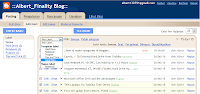
How to create categories on our blog is very easy, first login to your blog in blogger, then go to "POST" and "EDIT entry", posting a post that you have been here, to create a category, posting a checklist that you want to make as category, then select "Label Actions," and select "New Label"
Give the name of the label you want to make, then select OK.
Take a look as shown below:
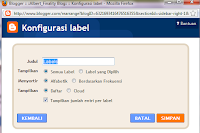
Next step is to add a gadget "label" on your blog. go to "DESIGN", and Select "Page Element", here you can set your blog, right places and you can also add gadgets to your liking,
Select 'Add Gadget', then the new tab will appear, select the Label and Select the "+" to add the gadget to your blog, it looks like this:
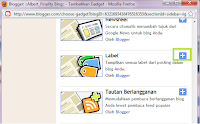
give the name of the label, it's up to you. then adjust the settings according to what you want. and Select Ok to create a Category,
Then Look at your blog now, there will be categories in your blog. If the picture is less great, just click to see more clearly.
good luck:)
Give the name of the label you want to make, then select OK.
Take a look as shown below:

Next step is to add a gadget "label" on your blog. go to "DESIGN", and Select "Page Element", here you can set your blog, right places and you can also add gadgets to your liking,
Select 'Add Gadget', then the new tab will appear, select the Label and Select the "+" to add the gadget to your blog, it looks like this:


give the name of the label, it's up to you. then adjust the settings according to what you want. and Select Ok to create a Category,
Then Look at your blog now, there will be categories in your blog. If the picture is less great, just click to see more clearly.
good luck:)
Subscribe to:
Posts (Atom)