Sometimes when we install windows xp,we forgot the administrator password. Or, when in the net or in the Lab school if you want to break the administrator password can be done by passing the CMD (Command Prompt). here is how to change password :
1. Press Windows + R or START-> RUN
2. Type 'cmd' and hit enter
3. Type net (space) user (space) administrator (space) yourpassword and enter the password will be changed according to what you want. For example: net user administrator abcd, then hit enter. then the administrator password will be immediately replaced into abcd.
4. Or you can type net(space)user(space)administrator(space)*, and press enter. then will appear word "Type the password for the user : " Type your password here. Then press enter, retype again and enter. your password will change.
so easy to change the administrator password without having to know the real password. good luck ......^_^
Showing posts with label ::Tips and Trick::. Show all posts
Showing posts with label ::Tips and Trick::. Show all posts
Sunday, November 14, 2010

How We Know What Type of Our Motherboard..
When we buy new computer or second computer but we lost the CD driver, of course we will be having trouble finding drivers for our motherboard. Some motherboards do have device drivers that "plug n play", meaning that when completed the install, all direct drivers to function properly. But if not? Of course we will be confused to find our motherboard drivers if its any kind of motherboard you do not know.
Here, some tips to determine what type of motherboard or determine the type of device driver to us:
1. Turn on your computer, so the computer reads "BEP" quickly press a button Pause - Break on the keyboard. Display monitor will be as below.
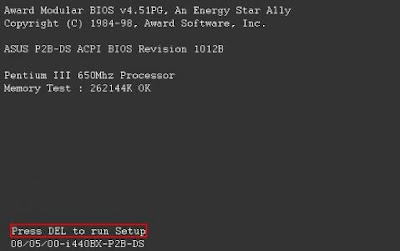
Look in the lower left corner, below the words "Press DEL to run Setup". It type of our motherboard. We find these types P2B motherboard we are using the chipset i440BX. Write on paper, or memorized. Searching on Google to find the driver.
Another way to know type of our motherboard is open dxdiag on the windows.
START->RUN->Type "dxdiag" or Windows + R and type dxdiag
then will be appear specification of your computer like a RAM,Processor,Sound,Video,Motherboard,operating system, and your input devices. look a picture below :
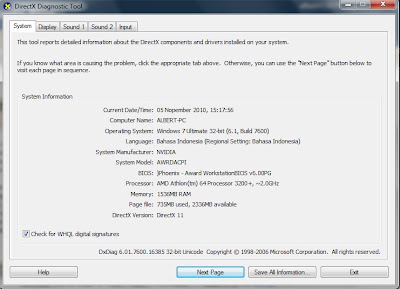
look at System Manufacturer : NVIDIA and System Model : AWRDACPI
its mean your motherboard type is NVIDIA AWRDACPI. you can search your driver motherboard with google with keyword "NVIDIA AWRDACPI"
Here, some tips to determine what type of motherboard or determine the type of device driver to us:
1. Turn on your computer, so the computer reads "BEP" quickly press a button Pause - Break on the keyboard. Display monitor will be as below.

Look in the lower left corner, below the words "Press DEL to run Setup". It type of our motherboard. We find these types P2B motherboard we are using the chipset i440BX. Write on paper, or memorized. Searching on Google to find the driver.
Another way to know type of our motherboard is open dxdiag on the windows.
START->RUN->Type "dxdiag" or Windows + R and type dxdiag
then will be appear specification of your computer like a RAM,Processor,Sound,Video,Motherboard,operating system, and your input devices. look a picture below :

look at System Manufacturer : NVIDIA and System Model : AWRDACPI
its mean your motherboard type is NVIDIA AWRDACPI. you can search your driver motherboard with google with keyword "NVIDIA AWRDACPI"
Wednesday, September 15, 2010
Download Video From Youtube
Many people watching video in youtube. How we can download it video? I will Explain How to Download video in youtube using IDM(Internet Download Manager). It's easy..
First, make sure the browser you use is Mozilla Firefox. if you don't have mozilla , you can download here
Install Mozilla Firefox on your computer.
Second, You can Download Internet Download Manager here
After that, install IDM(Internet Download Manager) on your computer. and restart Firefox so the Internet Download Manager can appears on Firefox like in the picture below..
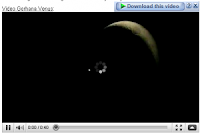
Easy right? after you stream the video, click download link, and Internet download manager will download automaticly... This post hopefully can help :)
First, make sure the browser you use is Mozilla Firefox. if you don't have mozilla , you can download here
Install Mozilla Firefox on your computer.
Second, You can Download Internet Download Manager here
After that, install IDM(Internet Download Manager) on your computer. and restart Firefox so the Internet Download Manager can appears on Firefox like in the picture below..

Easy right? after you stream the video, click download link, and Internet download manager will download automaticly... This post hopefully can help :)
Sunday, July 4, 2010
Regedit Tips
Here,, I'd like to explain to edit registry on your windows.I suggest you use deepfreeze, before edit your registry system. here, I use windows xp as my operating system, in other Operating system maybe there are a little difference.first. click start->Run or press Win+R on your keyboard, and type Regedit, and enter. regedit windows will appear.
and edit the regedit as you wish..
Disable CMD
HKCU \ Software \ Microsoft \ Windows \ CurrentVersion \ Policies \ System
Create a new Dword with a name "DisableCMD" Then fill valueX with:
1 = Command
2 = Command & Script
Creating Different Views On Logon Window
HKEY_USERS / .DEFAULT / Software / Microsoft / Windows / CurrentVersion / ThemeManager
ColorName double click and enter text in the Value Data Metallic.
Displaying the Administrator on Welcome Screen
HKEY_LOCAL_MACHINE \ SOFTWARE \ Microsoft \ Windows NT \ CurrentVersion \ Winlogon \ SpecialAccounts \ Userlist
Create a new DWORD Value and name the new administrator.
Double-click Administrator and enter the first digit in the Value Data.
Auto Login
HKEY_LOCAL_MACHINE / SOFTWARE / Microsoft / Windows NT / CurrentVersion / Winlogon
AltDefaultUserName double click and enter your user account selected.
AutoAdminLogon double click and enter the number 1 in Value Data.
Create a new DWORD Value and give name DefaultPassword.
DefaultPassword double click and enter the account password is selected in the Value Data.
Hiding Printers & Faxes Icon from Start Menu
HKEY_CURRENT_USER / Software / Microsoft / windows / CurrentVersion / Explorer / Advanced
Find a value named Start_ShowPrinters and give the number 0 in Value Data.
Renaming the Recycle Bin
HKEY_CLASSES_ROOT / CLSID / (645FF040-5081-101B-9F08-00AA002F954E)
Double click on the option (Default value) and give a new name as desired on the Value Data.
Hiding Recycle Bin
HKEY_LOCAL_MACHINE / Software / Microsoft / Windows / CurrentVersion / Explorer / Desktop / NameSpace
Delete subkey (645FF040-5081-101B-9F08-00AA002F954E), then Restart the computer to see results.
To bring it back, make the re-combination of numbers (645FF040-5081-101B-9F08-00AA002F954E).
Return the lost Documents Folder In My Computer
HKEY_LOCAL_MACHINE / Software / Microsoft / Windows / CurrentVersion / Explorer / DocFolderPaths
Select Edit menu> New> String Value and name it in accordance with the username that is used in Windows (eg: Chippers)
Double click on these values and enter the path where your Documents to be (for example D: \ Documents)
Hide My Recent Documents
HKEY_CURRENT_USER / Software / Microsoft / Windows / CurrentVersion / Policies / Explorer
Click the Edit menu> New> DWORD Value and give name NoRecentDocsMenu.
Then double click on DWORD Value, and give a number to activate it.
Hide Menu Find
HKEY_CURRENT_USER / Software / Microsoft / Windows / CurrentVersion / Policies / Explorer
Click on Edit menu> New> DWORD Value and give name NoFind.
Then double click on DWORD Value and give a number to activate it. Restart the computer.
Hide Help And Support
HKEY_CURRENT_USER / Software / Microsoft / Windows / CurrentVersion / Policies / Explorer
Create a new DWORD Value - Menu Edit> New> DWORD Value, and name NoSMHelp.
Then double click on NoSMHelp and fill with 1 in Value Data. Restart the computer.
Hide Run Menu
HKEY_CURRENT_USER / Software / Microsoft / Windows / CurrentVersion / Policies / Explorer
Create a new DWORD Value and give name NoRun. Double click and enter the number 1 as the Value Data.
Hiding Menu Run From the Start Menu (2)
HKEY_CURRENT_USER / Software / Microsoft / Windows / CurrentVersion / Explorer / Advanced
Find a value named Start_ShowRun, double click and enter the number 0 in the Value Data.
Hiding Log Off
HKEY_CURRENT_USER / Software / Microsoft / Windows / CurrentVersion / Policies / Explorer
Click the Edit menu> New> Binary Value and name NoLogOff.
Double click on NoLogOff and enter the number 01 00 00 00 in the Value Data.
Hiding Menu Turn Off Computer
HKEY_CURRENT_USER / Software / Microsoft / Windows / CurrentVersion / Policies / Explorer
Click the Edit menu> New> DWORD Value and name NoClose.
Double click NoClose and give value 1 in Value Data.
Hiding the Control Panel from the Start Menu
HKEY_CURRENT_USER / Software / Microsoft / Windows / CurrentVersion / Explorer / Advanced
Find a value named Start_ShowControlPanel and double click on the section.
Enter the number 0 in Value Data.
Hide menu My Pictures From the Start Menu
HKEY_CURRENT_USER / Software / Microsoft / Windows / CurrentVersion / Explorer / Advanced
Double click on Start_ShowMyPics and enter the number 0 in the Value Data.
Return the Administrative Tools Menu
HKEY_CURRENT_USER / Software / Microsoft / Windows / CurrentVersion / Explorer / Advanced
Double click on StartMenuAdminTools and give the value 1 in Value Data.
Minimize Start Menu Icons
HKEY_CURRENT_USER / Software / Microsoft / Windows / CurrentVersion / Explorer / Advanced
Double click on Start_LargeMFUIcons and insert value 1 in Value Data.
Eliminating Username On the Start Menu
HKEY_CURRENT_USER \ Software \ Microsoft \ Windows \ CurrentVersion \ Policies \ Explorer
Select Edit> New> DWORD Value and name NoUserNameInStartMenu.
Double click NoUserNameInStartMenu and insert value 1 in Value Data.
Prevent Start Menu Changes
HKEY_CURRENT_USER / Software / Microsoft / Windows / CurrentVersion / Policies / Explorer
Create a new DWORD Value and give name NoChangeStartMenu.
Double click NoChangeStartMenu and insert value 1 in Value Data.
Create Desktop More Stable
HKEY_CURRENT_USER / Software / Microsoft / Windows / CurrentVersion / Explorer
Create a new DWORD Value and give name DesktopProcess.
Double click DesktopProcess and insert value 1 in Value Data.
Deleting a List of Courses In Home Run
HKEY_CURRENT_USER / Software / Microsoft / Windows / CurrentVersion / Explorer / RunMRU
In the right pane, you will see a row of the software (indicated by the alphabet a, b, c, d, and so on).
To remove it, simply by selecting one (or all) the name of an existing program and press the Del key.
If a confirmation window pops up for data deletion, tap Yes.
Disabling Right-click the Desktop
HKEY_CURRENT_USER / Software / Microsoft / Windows / CurrentVersion / Policies / Explorer
Create a new DWORD Value and give name NoViewContextMenu.
Double click on NoViewContextMenu and insert value 1 in Value Data.
Change the Time Delay When Opening Menu
HKEY_CURRENT_USER / Control Panel / Desktop
Double click on the MenuShowDelay and change the number that originally 400 milliseconds into other figures. The smaller the faster.
Set Size Icon On Desktop And Start Menu
HKEY_CURRENT_USER / Control Panel / Desktop / WindowMetrics
Double-click the Shell Icon Size and change the number 32 to another number, say 10.
Changing Windows Color
HKEY_CURRENT_USER / Control Panel / Colors
Double-click the window and enter the RGB color combination (use Adobe PhotoShop to find the appropriate color combination).
Changing Text Colors in Windows
HKEY_CURRENT_USER / Control Panel / Colors
Double click WindowText and enter the RGB color combinations.
Removes the Screen Saver tab
HKEY_CURRENT_USER / Software / Microsoft / Windows / CurrentVersion / Policies / System
HKEY_LOCAL_MACHINE / Software / Microsoft / Windows / CurrentVersion / Policies / System
Create a new DWORD Value and give name NoDispScrSavPage.
Double click NoDispScrSavPage and insert value 1 in Value Data.
Changing the Screen Saver with Registry
HKEY_CURRENT_USER / Control Panel / Desktop
Double click SCRNSAVE.EXE then enter the path where the file desired Screen Saver.
Example: C: \ WINDOWS \ ScreenSaver.scr
Disabling Default Screen Saver
HKEY_USERS / .DEFAULT / Control Panel / Desktop
Double click ScreenSaveActive and enter the number 0 in Value Data.
To return insert value 1 in Value Data.
Eliminating arrow on Shortcut icon
HKEY_CLASSES_ROOT / Inkfile
HKEY_CLASSES_ROOT / piffile
Change the name IsShortcut be IsShortcuts.
Change Style Wallpaper
HKEY_CURRENT_USER / Control Panel / Desktop
Double click on WallpaperStyle and enter the following number in the Value Data:
1> Center
2> Stretch
3> Tile
Turning off Low Disk Space Warning
HKEY_CURRENT_USER / Software / Microsoft / Windows / CurrentVersion / Policies \ Explorer
Create a new DWORD Value and give name NoLowDiskSpaceChecks.
Double click NoLowDiskSpaceChecks and insert value 1 in Value Data.
Disabling Menu Properties My Computer
HKEY_CURRENT_USER / Software / Microsoft / Windows / CurrentVersion / Policies / Explorer
Create a new DWORD Value and give name NoPropertiesMyComputer.
Double click NoPropertiesMyComputer and insert value 1 in Value Data.
HKEY_LOCAL_MACHINE / Software / Microsoft / Windows / CurrentVersion / Policies / Explorer
Create a new DWORD Value and give name NoPropertiesMyComputer.
Double click NoPropertiesMyComputer and insert value 1 in Value Data.
If the Explorer key does not exist, create a new one by clicking on the Edit menu> New> Key and name it Explorer.
Sizing CoolSwitch
(Try to press Alt Tab, it is called with CoolSwitch)
HKEY_CURRENT_USER / Control Panel / Desktop
HKEY_USERS / .DEFAULT / Control Panel / Desktop
Click CoolSwitchColumns and arrange CoolSwitch how long it will be displayed by entering the desired number in the Value Data.
Then click CoolSwitchRows and do similar things.
Disabling Function CoolSwitch
HKEY_CURRENT_USER / Control Panel / Desktop
HKEY_USERS / .DEFAULT / Control Panel / Desktop
Double click on CoolSwitch and enter the number 0.
Changing Keys Left to Right Buttons On Mouse
HKEY_CURRENT_USER / Control Panel / Mouse
Double click on SwapMouseButtons and give the value 1 in Value Data.
Changing Line Rolls On Scroll Mouse
HKEY_CURRENT_USER / Control Panel / Desktop
Double click WheelScrollLines enter the desired number (in accordance with the line you want rolled) in Value Data.
Hiding the System Properties Control Panel
HKEY_CURRENT_USER / Control Panel / don 't load
Make a new String Value and give name sysdm.cpl.
Double click sysdm.cpl and insert 'Yes' in the Value Data.
Disabling Display Properties
HKEY_CURRENT_USER / Software / Microsoft / Windows / CurrentVersion / Policies
On the Policies subkey, create a new key with the way Edit> New> Key and name it System.
Then in the System subkey, create a new DWORD Value and give name NoDispCPL.
Double click NoDispCPL and insert value 1 in Value Data.
DVDs In Windows Media Player
HKEY_CURRENT_USER / Software / Microsoft / MediaPlayer / Player / Settings
Select Edit menu> New> String Value and name DVDUI.
Double click DVDUI and enter the text Yes in Value Data
Hiding Drive
HKEY_CURRENT_USER / Software / Microsoft / Windows / CurrentVersion / Policies / Explorer
Select Edit> New> DWORD Value and name NoDrives.
Double-click the drive NoDrives and determine which one to be eliminated in the Value Data.
Example: if you want to remove drive E:, enter the number 16 in the Value Data.
Combination of numbers in the Value Data is as follows:
A: 1 D: 8 G: 64 J: 512 M: 4096
B: 2 E: 16 H: 128 K: 1024 All: 67108863
C: 4 F: 32 I: 256 L: 2048
Hiding Advanced Settings In Windows Explorer Folder Options
HKEY_LOCAL_MACHINE / SOFTWARE / Microsoft / Windows / CurrentVersion / Explorer
Under key Explorer will find subkey named Advanced. Right click and select Rename. Advanced Rename become Advancedx.
Code Playing Game Cheating Hearts
HKEY_CURRENT_USER / Software / Microsoft / Windows / CurrentVersion / Applets
Click the Edit menu> New> Key and name the Hearts.
Click the Edit menu> New> String Value and give name and fill in the numbers ZB 42 in Value Data.
Open Hearts in the Start Menu> All Programs> Games. After entering the name of the player, press the following button combination:
Ctrl + Shift + Alt + F12 and all the cards will open.
Clean Trash Uninstall
HKEY_LOCAL_MACHINE / SOFTWARE / Microsoft / Windows / CurrentVersion / Uninstall
Delete the subkey that has the same name as the package is uninstalled.
Removing Unwanted Programs List From Add / Remove Programs
HKEY_LOCAL_MACHINE \ SOFTWARE \ Microsoft \ Windows \ CurrentVersion \ Uninstall
Delete the subkey that contains the unwanted program by pressing the Del key.
Running Programs At Startup
HKEY_LOCAL_MACHINE / SOFTWARE / Microsoft / Windows / CurrentVersion / Run
Select Edit menu> New> String Value with the name of Winamp for example.
Double click on the value and enter the path where the program is installed (C: \ Program Files \ Winamp \ winamp.exe)
Speeding up Windows XP Shutdown Process
HKEY_LOCAL_MACHINE / SYSTEM / CurrentControlSet / Control
WaitToKillServiceTimeout Double click and change the value to be lower than 2000.
Changing the AM and PM Be Morning And Evening
HKEY_CURRENT_USER / Control Panel / International
Double click s1159 and change the text AM with MORNING.
Double click s2359 and change the text PM with AFTERNOON.
Disabling Autorun Function
HKEY_CURRENT_USER / Software / Microsoft / Windows / CurrentVersion / Policies / Explorer
Double-click NoDriveTypeAutoRun, and insert number 95 in the Value Data.
Turning off Automatic Program Not Responding
HKEY_USERS / .DEFAULT / Control Panel / Desktop
Double click AutoEndTasks and insert value 1 in Value Data.
Changing the Internet Explorer Toolbar Background
HKEY_CURRENT_USER / Software / Microsoft / Internet Explorer / Toolbar
Select Edit menu> New> String Value and name BackBitmap.
Double click BackBitmap and fill with the path where the bitmap image (. Bmp) that will become the toolbar background is in the Value Data.
For example: C: \ WINDOWS \ Wallpaper.bmp
Tweaking Memory In Windows XP
HKEY_LOCAL_MACHINE / SYSTEM / CurrentControlSet / Control / SessionManager / Memory Management
Double click on DisablePagingExecutive and insert value 1 in Value Data.
If enabled, Windows will not make the paging file to your hard disk. The operating system and programs become more responsive. Recommended for computers that have more than 128MB of memory.
Double click on LargeSystemCache and insert value 1 in Value Data.
When activated, the system will allocate the entire memory (except 4 MB for disk caching) to file caching. The computer will do the XP kernel caching in memory so that Windows XP can run faster.
Unload. Etc. To Accelerate Access Memory
HKEY_LOCAL_MACHINE \ SOFTWARE \ Microsoft \ Windows \ CurrentVersion \ Explorer
Select Edit menu> New> Key and name the AlwaysUnloadDLL.
In the Default Value option enter the number 1.
Hide the Device Manager
HKEY_CURRENT_USER / Software / Microsoft / Windows / CurrentVersion / Policies
Select Edit menu> New> Key and name it System.
In the System subkey create a new DWORD Value and give name NoDevMgrPage.
Double click NoDevMgrPage and insert value 1 in Value Data.
Optimizing your Computer Hard Disk When Idle Condition
HKEY_LOCAL_MACHINE \ SOFTWARE \ Microsoft \ Windows \ CurrentVersion \ OptimalLayout
Create a new DWORD Value and give name EnableAutoLayout.
Double click EnableAutoLayout and insert value 1 in Value Data.
Disabling Task Manager
HKEY_LOCAL_MACHINE \ Software \ Microsoft \ Windows \ CurrentVersion \ Policies \ System
Create a new DWORD Value and name it DisableTaskMgr.
Double-click DisableTaskMgr and insert 1 in Value Data.
Disabling Function CD Burning
HKEY_CURRENT_USER \ Software \ Microsoft \ Windows \ CurrentVersion \ Policies \ Explorer
HKEY_LOCAL_MACHINE \ Software \ Microsoft \ Windows \ CurrentVersion \ Policies \ Explorer
Create a new DWORD Value and give name NoCDBurning.
Double click NoCDBurning and insert value 1 in Value Data.
Modify the Start Menu Folders
HKEY_CURRENT_USER \ Software \ Microsoft \ Windows \ CurrentVersion \ Explorer \ Advanced
Create a new DWORD Value if it is not available and give name, among others Start_ShowControlPanel, Start_ShowMyComputer, Start_ShowMyDocs, Start_ShowMyMusic, Start_ShowMyPics and Start_ShowNetConn.
Start_ShowControlPanel - Control Panel
Start_ShowMyComputer - My Computer
Start_ShowMyDocs - My Documents
Start_ShowMyMusic - My Music
Start_ShowMyPics - My Pictures
Start_ShowNetConn - Network Connections
Double click on each key and give the option value as follows:
0 = Hidden
1 = Open When clicked
2 = Expand Contents
Hide All Programs From Start Menu
HKEY_CURRENT_USER \ Software \ Microsoft \ Windows \ CurrentVersion \ Policies \ Explorer
HKEY_LOCAL_MACHINE \ Software \ Microsoft \ Windows \ CurrentVersion \ Policies \ Explorer
Create a new DWORD Value and give name NoStartMenuMorePrograms.
Double click NoStartMenuMorePrograms and insert value 1 in Value Data.
Hiding Computer Management Option (Right click on My Computer Manage menu)
HKEY_CURRENT_USER \ Software \ Microsoft \ Windows \ CurrentVersion \ Policies \ Explorer
Create a new DWORD Value and give name NoManageMyComputerVerb.
Double click NoManageMyComputerVerb and insert value 1 in Value Data.
Prohibition On Active Desktop
HKEY_CURRENT_USER \ Software \ Microsoft \ Windows \ CurrentVersion \ Policies \ ActiveDesktop
HKEY_LOCAL_MACHINE \ Software \ Microsoft \ Windows \ CurrentVersion \ Policies \ ActiveDesktop
Create one or several DWORD Value with the name as follows:
NoChangingWallpaper - Disable the ability to change wallpapers.
NoComponents - Disable components.
NoAddingComponents - Disable the ability to add components.
NoDeletingComponents - Disable the ability to delete components.
NoEditingComponents - Disable the ability to edit components.
NoCloseDragDropBands - prevents adding, dragging, dropping and closing the Taskbar's toolbars.
NoMovingBands - retrict adjustments to the desktop toolbars
NoHTMLWallPaper - only allow bitmaps (BMP) as wallpaper
and enter the number 1 on each Value Data.
Prohibiting Change Active Desktop Settings
HKEY_CURRENT_USER \ Software \ Microsoft \ Windows \ CurrentVersion \ Policies \ Explorer
HKEY_LOCAL_MACHINE \ Software \ Microsoft \ Windows \ CurrentVersion \ Policies \ Explorer
Create a new DWORD Value and give name NoActiveDesktopChanges.
Double click NoActiveDesktopChanges and insert value 1 in Value Data.
Disabling the Folder Options Menu
HKEY_CURRENT_USER \ Software \ Microsoft \ Windows \ curre ntVersion \ Policies \ Explorer
HKEY_LOCAL_MACHINE \ Software \ Microsoft \ Windows \ Curr entVersion \ Policies \ Explorer
Create a new DWORD Value and give name NoFolderOptions.
Double click NoFolderOptions and insert value 1 in Value Data.
Viewing Processor Information
HKEY_LOCAL_MACHINE \ HARDWARE \ DESCRIPTION \ System \ CentralProcessor
Note: Only to be seen and not for editing.
Disabling Internet Access
HKEY_CURRENT_USER \ Software \ Microsoft \ Windows \ CurrentVersion \ Internet Settings
Create a new DWORD Value if it is not available, and name each ProxyEnable and ProxyServer.
Double click ProxyEnable and enter insert value 1 in Value Data.
Double click ProxyServer and insert input in the form of fake proxy address, for example: 127.0.0.1:1271
HKEY_CURRENT_USER \ Software \ Policies \ Microsoft \ Internet Explorer \ Control Panel
Create two new DWORD Value and give name of each Connwiz Admin Connection Settings and Lock.
Double click each value and insert value 1 in Value Data.
Disabling Function Download Files In Internet Explorer
HKEY_CURRENT_USER \ Software \ Microsoft \ Windows \ CurrentVersion \ Internet Settings \ Zones \ 3
HKEY_LOCAL_MACHINE \ Software \ Microsoft \ Windows \ CurrentVersion \ Internet Settings \ Zones \ 3
Create a new DWORD Value if it is not available, and give the name of 1803.
Double-click 1803 and enter the number 3 in the Value Data.
Prohibit Instalation Program Through ActiveX in Internet Explorer
HKEY_CURRENT_USER \ Software \ Microsoft \ Windows \ CurrentVersion \ Internet Settings \ Zones \ 3
Create a new DWORD Value if no, and name in 1001.
Double click 1001 and insert desired input as the following in the Value Data:
1 = Enabled Prompt Installations
3 = Installations Disabled
Eliminate the option "Show hidden files & folders" on Folder Options
HKEY_LOCAL_MACHINE | SOFTWARE | Microsoft | Windows | CurrentVersion | Explorer | Advanced | Folder | Hidden
In the bag. "Type" remove the word "group"
OS: WIN XP
and edit the regedit as you wish..
Disable CMD
HKCU \ Software \ Microsoft \ Windows \ CurrentVersion \ Policies \ System
Create a new Dword with a name "DisableCMD" Then fill valueX with:
1 = Command
2 = Command & Script
Creating Different Views On Logon Window
HKEY_USERS / .DEFAULT / Software / Microsoft / Windows / CurrentVersion / ThemeManager
ColorName double click and enter text in the Value Data Metallic.
Displaying the Administrator on Welcome Screen
HKEY_LOCAL_MACHINE \ SOFTWARE \ Microsoft \ Windows NT \ CurrentVersion \ Winlogon \ SpecialAccounts \ Userlist
Create a new DWORD Value and name the new administrator.
Double-click Administrator and enter the first digit in the Value Data.
Auto Login
HKEY_LOCAL_MACHINE / SOFTWARE / Microsoft / Windows NT / CurrentVersion / Winlogon
AltDefaultUserName double click and enter your user account selected.
AutoAdminLogon double click and enter the number 1 in Value Data.
Create a new DWORD Value and give name DefaultPassword.
DefaultPassword double click and enter the account password is selected in the Value Data.
Hiding Printers & Faxes Icon from Start Menu
HKEY_CURRENT_USER / Software / Microsoft / windows / CurrentVersion / Explorer / Advanced
Find a value named Start_ShowPrinters and give the number 0 in Value Data.
Renaming the Recycle Bin
HKEY_CLASSES_ROOT / CLSID / (645FF040-5081-101B-9F08-00AA002F954E)
Double click on the option (Default value) and give a new name as desired on the Value Data.
Hiding Recycle Bin
HKEY_LOCAL_MACHINE / Software / Microsoft / Windows / CurrentVersion / Explorer / Desktop / NameSpace
Delete subkey (645FF040-5081-101B-9F08-00AA002F954E), then Restart the computer to see results.
To bring it back, make the re-combination of numbers (645FF040-5081-101B-9F08-00AA002F954E).
Return the lost Documents Folder In My Computer
HKEY_LOCAL_MACHINE / Software / Microsoft / Windows / CurrentVersion / Explorer / DocFolderPaths
Select Edit menu> New> String Value and name it in accordance with the username that is used in Windows (eg: Chippers)
Double click on these values and enter the path where your Documents to be (for example D: \ Documents)
Hide My Recent Documents
HKEY_CURRENT_USER / Software / Microsoft / Windows / CurrentVersion / Policies / Explorer
Click the Edit menu> New> DWORD Value and give name NoRecentDocsMenu.
Then double click on DWORD Value, and give a number to activate it.
Hide Menu Find
HKEY_CURRENT_USER / Software / Microsoft / Windows / CurrentVersion / Policies / Explorer
Click on Edit menu> New> DWORD Value and give name NoFind.
Then double click on DWORD Value and give a number to activate it. Restart the computer.
Hide Help And Support
HKEY_CURRENT_USER / Software / Microsoft / Windows / CurrentVersion / Policies / Explorer
Create a new DWORD Value - Menu Edit> New> DWORD Value, and name NoSMHelp.
Then double click on NoSMHelp and fill with 1 in Value Data. Restart the computer.
Hide Run Menu
HKEY_CURRENT_USER / Software / Microsoft / Windows / CurrentVersion / Policies / Explorer
Create a new DWORD Value and give name NoRun. Double click and enter the number 1 as the Value Data.
Hiding Menu Run From the Start Menu (2)
HKEY_CURRENT_USER / Software / Microsoft / Windows / CurrentVersion / Explorer / Advanced
Find a value named Start_ShowRun, double click and enter the number 0 in the Value Data.
Hiding Log Off
HKEY_CURRENT_USER / Software / Microsoft / Windows / CurrentVersion / Policies / Explorer
Click the Edit menu> New> Binary Value and name NoLogOff.
Double click on NoLogOff and enter the number 01 00 00 00 in the Value Data.
Hiding Menu Turn Off Computer
HKEY_CURRENT_USER / Software / Microsoft / Windows / CurrentVersion / Policies / Explorer
Click the Edit menu> New> DWORD Value and name NoClose.
Double click NoClose and give value 1 in Value Data.
Hiding the Control Panel from the Start Menu
HKEY_CURRENT_USER / Software / Microsoft / Windows / CurrentVersion / Explorer / Advanced
Find a value named Start_ShowControlPanel and double click on the section.
Enter the number 0 in Value Data.
Hide menu My Pictures From the Start Menu
HKEY_CURRENT_USER / Software / Microsoft / Windows / CurrentVersion / Explorer / Advanced
Double click on Start_ShowMyPics and enter the number 0 in the Value Data.
Return the Administrative Tools Menu
HKEY_CURRENT_USER / Software / Microsoft / Windows / CurrentVersion / Explorer / Advanced
Double click on StartMenuAdminTools and give the value 1 in Value Data.
Minimize Start Menu Icons
HKEY_CURRENT_USER / Software / Microsoft / Windows / CurrentVersion / Explorer / Advanced
Double click on Start_LargeMFUIcons and insert value 1 in Value Data.
Eliminating Username On the Start Menu
HKEY_CURRENT_USER \ Software \ Microsoft \ Windows \ CurrentVersion \ Policies \ Explorer
Select Edit> New> DWORD Value and name NoUserNameInStartMenu.
Double click NoUserNameInStartMenu and insert value 1 in Value Data.
Prevent Start Menu Changes
HKEY_CURRENT_USER / Software / Microsoft / Windows / CurrentVersion / Policies / Explorer
Create a new DWORD Value and give name NoChangeStartMenu.
Double click NoChangeStartMenu and insert value 1 in Value Data.
Create Desktop More Stable
HKEY_CURRENT_USER / Software / Microsoft / Windows / CurrentVersion / Explorer
Create a new DWORD Value and give name DesktopProcess.
Double click DesktopProcess and insert value 1 in Value Data.
Deleting a List of Courses In Home Run
HKEY_CURRENT_USER / Software / Microsoft / Windows / CurrentVersion / Explorer / RunMRU
In the right pane, you will see a row of the software (indicated by the alphabet a, b, c, d, and so on).
To remove it, simply by selecting one (or all) the name of an existing program and press the Del key.
If a confirmation window pops up for data deletion, tap Yes.
Disabling Right-click the Desktop
HKEY_CURRENT_USER / Software / Microsoft / Windows / CurrentVersion / Policies / Explorer
Create a new DWORD Value and give name NoViewContextMenu.
Double click on NoViewContextMenu and insert value 1 in Value Data.
Change the Time Delay When Opening Menu
HKEY_CURRENT_USER / Control Panel / Desktop
Double click on the MenuShowDelay and change the number that originally 400 milliseconds into other figures. The smaller the faster.
Set Size Icon On Desktop And Start Menu
HKEY_CURRENT_USER / Control Panel / Desktop / WindowMetrics
Double-click the Shell Icon Size and change the number 32 to another number, say 10.
Changing Windows Color
HKEY_CURRENT_USER / Control Panel / Colors
Double-click the window and enter the RGB color combination (use Adobe PhotoShop to find the appropriate color combination).
Changing Text Colors in Windows
HKEY_CURRENT_USER / Control Panel / Colors
Double click WindowText and enter the RGB color combinations.
Removes the Screen Saver tab
HKEY_CURRENT_USER / Software / Microsoft / Windows / CurrentVersion / Policies / System
HKEY_LOCAL_MACHINE / Software / Microsoft / Windows / CurrentVersion / Policies / System
Create a new DWORD Value and give name NoDispScrSavPage.
Double click NoDispScrSavPage and insert value 1 in Value Data.
Changing the Screen Saver with Registry
HKEY_CURRENT_USER / Control Panel / Desktop
Double click SCRNSAVE.EXE then enter the path where the file desired Screen Saver.
Example: C: \ WINDOWS \ ScreenSaver.scr
Disabling Default Screen Saver
HKEY_USERS / .DEFAULT / Control Panel / Desktop
Double click ScreenSaveActive and enter the number 0 in Value Data.
To return insert value 1 in Value Data.
Eliminating arrow on Shortcut icon
HKEY_CLASSES_ROOT / Inkfile
HKEY_CLASSES_ROOT / piffile
Change the name IsShortcut be IsShortcuts.
Change Style Wallpaper
HKEY_CURRENT_USER / Control Panel / Desktop
Double click on WallpaperStyle and enter the following number in the Value Data:
1> Center
2> Stretch
3> Tile
Turning off Low Disk Space Warning
HKEY_CURRENT_USER / Software / Microsoft / Windows / CurrentVersion / Policies \ Explorer
Create a new DWORD Value and give name NoLowDiskSpaceChecks.
Double click NoLowDiskSpaceChecks and insert value 1 in Value Data.
Disabling Menu Properties My Computer
HKEY_CURRENT_USER / Software / Microsoft / Windows / CurrentVersion / Policies / Explorer
Create a new DWORD Value and give name NoPropertiesMyComputer.
Double click NoPropertiesMyComputer and insert value 1 in Value Data.
HKEY_LOCAL_MACHINE / Software / Microsoft / Windows / CurrentVersion / Policies / Explorer
Create a new DWORD Value and give name NoPropertiesMyComputer.
Double click NoPropertiesMyComputer and insert value 1 in Value Data.
If the Explorer key does not exist, create a new one by clicking on the Edit menu> New> Key and name it Explorer.
Sizing CoolSwitch
(Try to press Alt Tab, it is called with CoolSwitch)
HKEY_CURRENT_USER / Control Panel / Desktop
HKEY_USERS / .DEFAULT / Control Panel / Desktop
Click CoolSwitchColumns and arrange CoolSwitch how long it will be displayed by entering the desired number in the Value Data.
Then click CoolSwitchRows and do similar things.
Disabling Function CoolSwitch
HKEY_CURRENT_USER / Control Panel / Desktop
HKEY_USERS / .DEFAULT / Control Panel / Desktop
Double click on CoolSwitch and enter the number 0.
Changing Keys Left to Right Buttons On Mouse
HKEY_CURRENT_USER / Control Panel / Mouse
Double click on SwapMouseButtons and give the value 1 in Value Data.
Changing Line Rolls On Scroll Mouse
HKEY_CURRENT_USER / Control Panel / Desktop
Double click WheelScrollLines enter the desired number (in accordance with the line you want rolled) in Value Data.
Hiding the System Properties Control Panel
HKEY_CURRENT_USER / Control Panel / don 't load
Make a new String Value and give name sysdm.cpl.
Double click sysdm.cpl and insert 'Yes' in the Value Data.
Disabling Display Properties
HKEY_CURRENT_USER / Software / Microsoft / Windows / CurrentVersion / Policies
On the Policies subkey, create a new key with the way Edit> New> Key and name it System.
Then in the System subkey, create a new DWORD Value and give name NoDispCPL.
Double click NoDispCPL and insert value 1 in Value Data.
DVDs In Windows Media Player
HKEY_CURRENT_USER / Software / Microsoft / MediaPlayer / Player / Settings
Select Edit menu> New> String Value and name DVDUI.
Double click DVDUI and enter the text Yes in Value Data
Hiding Drive
HKEY_CURRENT_USER / Software / Microsoft / Windows / CurrentVersion / Policies / Explorer
Select Edit> New> DWORD Value and name NoDrives.
Double-click the drive NoDrives and determine which one to be eliminated in the Value Data.
Example: if you want to remove drive E:, enter the number 16 in the Value Data.
Combination of numbers in the Value Data is as follows:
A: 1 D: 8 G: 64 J: 512 M: 4096
B: 2 E: 16 H: 128 K: 1024 All: 67108863
C: 4 F: 32 I: 256 L: 2048
Hiding Advanced Settings In Windows Explorer Folder Options
HKEY_LOCAL_MACHINE / SOFTWARE / Microsoft / Windows / CurrentVersion / Explorer
Under key Explorer will find subkey named Advanced. Right click and select Rename. Advanced Rename become Advancedx.
Code Playing Game Cheating Hearts
HKEY_CURRENT_USER / Software / Microsoft / Windows / CurrentVersion / Applets
Click the Edit menu> New> Key and name the Hearts.
Click the Edit menu> New> String Value and give name and fill in the numbers ZB 42 in Value Data.
Open Hearts in the Start Menu> All Programs> Games. After entering the name of the player, press the following button combination:
Ctrl + Shift + Alt + F12 and all the cards will open.
Clean Trash Uninstall
HKEY_LOCAL_MACHINE / SOFTWARE / Microsoft / Windows / CurrentVersion / Uninstall
Delete the subkey that has the same name as the package is uninstalled.
Removing Unwanted Programs List From Add / Remove Programs
HKEY_LOCAL_MACHINE \ SOFTWARE \ Microsoft \ Windows \ CurrentVersion \ Uninstall
Delete the subkey that contains the unwanted program by pressing the Del key.
Running Programs At Startup
HKEY_LOCAL_MACHINE / SOFTWARE / Microsoft / Windows / CurrentVersion / Run
Select Edit menu> New> String Value with the name of Winamp for example.
Double click on the value and enter the path where the program is installed (C: \ Program Files \ Winamp \ winamp.exe)
Speeding up Windows XP Shutdown Process
HKEY_LOCAL_MACHINE / SYSTEM / CurrentControlSet / Control
WaitToKillServiceTimeout Double click and change the value to be lower than 2000.
Changing the AM and PM Be Morning And Evening
HKEY_CURRENT_USER / Control Panel / International
Double click s1159 and change the text AM with MORNING.
Double click s2359 and change the text PM with AFTERNOON.
Disabling Autorun Function
HKEY_CURRENT_USER / Software / Microsoft / Windows / CurrentVersion / Policies / Explorer
Double-click NoDriveTypeAutoRun, and insert number 95 in the Value Data.
Turning off Automatic Program Not Responding
HKEY_USERS / .DEFAULT / Control Panel / Desktop
Double click AutoEndTasks and insert value 1 in Value Data.
Changing the Internet Explorer Toolbar Background
HKEY_CURRENT_USER / Software / Microsoft / Internet Explorer / Toolbar
Select Edit menu> New> String Value and name BackBitmap.
Double click BackBitmap and fill with the path where the bitmap image (. Bmp) that will become the toolbar background is in the Value Data.
For example: C: \ WINDOWS \ Wallpaper.bmp
Tweaking Memory In Windows XP
HKEY_LOCAL_MACHINE / SYSTEM / CurrentControlSet / Control / SessionManager / Memory Management
Double click on DisablePagingExecutive and insert value 1 in Value Data.
If enabled, Windows will not make the paging file to your hard disk. The operating system and programs become more responsive. Recommended for computers that have more than 128MB of memory.
Double click on LargeSystemCache and insert value 1 in Value Data.
When activated, the system will allocate the entire memory (except 4 MB for disk caching) to file caching. The computer will do the XP kernel caching in memory so that Windows XP can run faster.
Unload. Etc. To Accelerate Access Memory
HKEY_LOCAL_MACHINE \ SOFTWARE \ Microsoft \ Windows \ CurrentVersion \ Explorer
Select Edit menu> New> Key and name the AlwaysUnloadDLL.
In the Default Value option enter the number 1.
Hide the Device Manager
HKEY_CURRENT_USER / Software / Microsoft / Windows / CurrentVersion / Policies
Select Edit menu> New> Key and name it System.
In the System subkey create a new DWORD Value and give name NoDevMgrPage.
Double click NoDevMgrPage and insert value 1 in Value Data.
Optimizing your Computer Hard Disk When Idle Condition
HKEY_LOCAL_MACHINE \ SOFTWARE \ Microsoft \ Windows \ CurrentVersion \ OptimalLayout
Create a new DWORD Value and give name EnableAutoLayout.
Double click EnableAutoLayout and insert value 1 in Value Data.
Disabling Task Manager
HKEY_LOCAL_MACHINE \ Software \ Microsoft \ Windows \ CurrentVersion \ Policies \ System
Create a new DWORD Value and name it DisableTaskMgr.
Double-click DisableTaskMgr and insert 1 in Value Data.
Disabling Function CD Burning
HKEY_CURRENT_USER \ Software \ Microsoft \ Windows \ CurrentVersion \ Policies \ Explorer
HKEY_LOCAL_MACHINE \ Software \ Microsoft \ Windows \ CurrentVersion \ Policies \ Explorer
Create a new DWORD Value and give name NoCDBurning.
Double click NoCDBurning and insert value 1 in Value Data.
Modify the Start Menu Folders
HKEY_CURRENT_USER \ Software \ Microsoft \ Windows \ CurrentVersion \ Explorer \ Advanced
Create a new DWORD Value if it is not available and give name, among others Start_ShowControlPanel, Start_ShowMyComputer, Start_ShowMyDocs, Start_ShowMyMusic, Start_ShowMyPics and Start_ShowNetConn.
Start_ShowControlPanel - Control Panel
Start_ShowMyComputer - My Computer
Start_ShowMyDocs - My Documents
Start_ShowMyMusic - My Music
Start_ShowMyPics - My Pictures
Start_ShowNetConn - Network Connections
Double click on each key and give the option value as follows:
0 = Hidden
1 = Open When clicked
2 = Expand Contents
Hide All Programs From Start Menu
HKEY_CURRENT_USER \ Software \ Microsoft \ Windows \ CurrentVersion \ Policies \ Explorer
HKEY_LOCAL_MACHINE \ Software \ Microsoft \ Windows \ CurrentVersion \ Policies \ Explorer
Create a new DWORD Value and give name NoStartMenuMorePrograms.
Double click NoStartMenuMorePrograms and insert value 1 in Value Data.
Hiding Computer Management Option (Right click on My Computer Manage menu)
HKEY_CURRENT_USER \ Software \ Microsoft \ Windows \ CurrentVersion \ Policies \ Explorer
Create a new DWORD Value and give name NoManageMyComputerVerb.
Double click NoManageMyComputerVerb and insert value 1 in Value Data.
Prohibition On Active Desktop
HKEY_CURRENT_USER \ Software \ Microsoft \ Windows \ CurrentVersion \ Policies \ ActiveDesktop
HKEY_LOCAL_MACHINE \ Software \ Microsoft \ Windows \ CurrentVersion \ Policies \ ActiveDesktop
Create one or several DWORD Value with the name as follows:
NoChangingWallpaper - Disable the ability to change wallpapers.
NoComponents - Disable components.
NoAddingComponents - Disable the ability to add components.
NoDeletingComponents - Disable the ability to delete components.
NoEditingComponents - Disable the ability to edit components.
NoCloseDragDropBands - prevents adding, dragging, dropping and closing the Taskbar's toolbars.
NoMovingBands - retrict adjustments to the desktop toolbars
NoHTMLWallPaper - only allow bitmaps (BMP) as wallpaper
and enter the number 1 on each Value Data.
Prohibiting Change Active Desktop Settings
HKEY_CURRENT_USER \ Software \ Microsoft \ Windows \ CurrentVersion \ Policies \ Explorer
HKEY_LOCAL_MACHINE \ Software \ Microsoft \ Windows \ CurrentVersion \ Policies \ Explorer
Create a new DWORD Value and give name NoActiveDesktopChanges.
Double click NoActiveDesktopChanges and insert value 1 in Value Data.
Disabling the Folder Options Menu
HKEY_CURRENT_USER \ Software \ Microsoft \ Windows \ curre ntVersion \ Policies \ Explorer
HKEY_LOCAL_MACHINE \ Software \ Microsoft \ Windows \ Curr entVersion \ Policies \ Explorer
Create a new DWORD Value and give name NoFolderOptions.
Double click NoFolderOptions and insert value 1 in Value Data.
Viewing Processor Information
HKEY_LOCAL_MACHINE \ HARDWARE \ DESCRIPTION \ System \ CentralProcessor
Note: Only to be seen and not for editing.
Disabling Internet Access
HKEY_CURRENT_USER \ Software \ Microsoft \ Windows \ CurrentVersion \ Internet Settings
Create a new DWORD Value if it is not available, and name each ProxyEnable and ProxyServer.
Double click ProxyEnable and enter insert value 1 in Value Data.
Double click ProxyServer and insert input in the form of fake proxy address, for example: 127.0.0.1:1271
HKEY_CURRENT_USER \ Software \ Policies \ Microsoft \ Internet Explorer \ Control Panel
Create two new DWORD Value and give name of each Connwiz Admin Connection Settings and Lock.
Double click each value and insert value 1 in Value Data.
Disabling Function Download Files In Internet Explorer
HKEY_CURRENT_USER \ Software \ Microsoft \ Windows \ CurrentVersion \ Internet Settings \ Zones \ 3
HKEY_LOCAL_MACHINE \ Software \ Microsoft \ Windows \ CurrentVersion \ Internet Settings \ Zones \ 3
Create a new DWORD Value if it is not available, and give the name of 1803.
Double-click 1803 and enter the number 3 in the Value Data.
Prohibit Instalation Program Through ActiveX in Internet Explorer
HKEY_CURRENT_USER \ Software \ Microsoft \ Windows \ CurrentVersion \ Internet Settings \ Zones \ 3
Create a new DWORD Value if no, and name in 1001.
Double click 1001 and insert desired input as the following in the Value Data:
1 = Enabled Prompt Installations
3 = Installations Disabled
Eliminate the option "Show hidden files & folders" on Folder Options
HKEY_LOCAL_MACHINE | SOFTWARE | Microsoft | Windows | CurrentVersion | Explorer | Advanced | Folder | Hidden
In the bag. "Type" remove the word "group"
OS: WIN XP
Sunday, June 13, 2010
Create a Secret Folder
How to create a password for your folder? so another people that open your folder must input the password that you created. This is the step by step :
1. Create a new folder and open the notepad (start->run->type "notepad")
2. Then Copy this Code to notepad:
@ECHO OFF
title Folder Private
if EXIST "Control Panel.{21EC2020-3AEA-1069-A2DD-08002B30309D}" goto UNLOCK
if NOT EXIST Private goto MDLOCKER
:CONFIRM
echo Are you sure you want to lock the folder(Y/N)
set/p "cho=>"
if %cho%==Y goto LOCK
if %cho%==y goto LOCK
if %cho%==n goto END
if %cho%==N goto END
echo Invalid choice.
goto CONFIRM
:LOCK
ren Private "Control Panel.{21EC2020-3AEA-1069-A2DD-08002B30309D}"
attrib +h +s "Control Panel.{21EC2020-3AEA-1069-A2DD-08002B30309D}"
echo Folder locked
goto End
:UNLOCK
echo Enter password to unlock folder
set/p "pass=>"
if NOT %pass%== PASSWORD HERE goto FAIL
attrib -h -s "Control Panel.{21EC2020-3AEA-1069-A2DD-08002B30309D}"
ren "Control Panel.{21EC2020-3AEA-1069-A2DD-08002B30309D}" Private
echo Folder Unlocked successfully
goto End
:FAIL
echo Invalid password
goto end
:MDLOCKER
md Private
echo Private created successfully
goto End
:End
3. Change "PASSWORD HERE" to your password. and Save File in notepad as type "AllFiles", and Filename "secret.bat". you can change the file name as you like, that extensions must be ".bat"
4. Double click Secret.bat, then will appear folder private in your folder.
5. Copy Files that you want to hide in folder private, then double click again secret.bat and type "y" for lock the folder private. then your file in folder private can't be opened.
6. To Open the folder, double click secret.bat and input the password that you type before. then your folder will appear and can be opened.
Just in case, Hide the secret.bat. so another people doesn't know by right click at secret.bat, and choose properties. and checklist the Hidden, then OK.
and go to control panel and choose Folder option. on tab "View" choose "Don't show hidden files and Folders" then click ok.
Your secret.bat was hidden.. to open them you must go to folder options on tab "View" choose "Show Hidden Files and Folders" then ok. your secret.bat is visible. doble click on it. and input the password..
with this your file will be safety.
:)
1. Create a new folder and open the notepad (start->run->type "notepad")
2. Then Copy this Code to notepad:
@ECHO OFF
title Folder Private
if EXIST "Control Panel.{21EC2020-3AEA-1069-A2DD-08002B30309D}" goto UNLOCK
if NOT EXIST Private goto MDLOCKER
:CONFIRM
echo Are you sure you want to lock the folder(Y/N)
set/p "cho=>"
if %cho%==Y goto LOCK
if %cho%==y goto LOCK
if %cho%==n goto END
if %cho%==N goto END
echo Invalid choice.
goto CONFIRM
:LOCK
ren Private "Control Panel.{21EC2020-3AEA-1069-A2DD-08002B30309D}"
attrib +h +s "Control Panel.{21EC2020-3AEA-1069-A2DD-08002B30309D}"
echo Folder locked
goto End
:UNLOCK
echo Enter password to unlock folder
set/p "pass=>"
if NOT %pass%== PASSWORD HERE goto FAIL
attrib -h -s "Control Panel.{21EC2020-3AEA-1069-A2DD-08002B30309D}"
ren "Control Panel.{21EC2020-3AEA-1069-A2DD-08002B30309D}" Private
echo Folder Unlocked successfully
goto End
:FAIL
echo Invalid password
goto end
:MDLOCKER
md Private
echo Private created successfully
goto End
:End
3. Change "PASSWORD HERE" to your password. and Save File in notepad as type "AllFiles", and Filename "secret.bat". you can change the file name as you like, that extensions must be ".bat"
4. Double click Secret.bat, then will appear folder private in your folder.
5. Copy Files that you want to hide in folder private, then double click again secret.bat and type "y" for lock the folder private. then your file in folder private can't be opened.
6. To Open the folder, double click secret.bat and input the password that you type before. then your folder will appear and can be opened.
Just in case, Hide the secret.bat. so another people doesn't know by right click at secret.bat, and choose properties. and checklist the Hidden, then OK.
and go to control panel and choose Folder option. on tab "View" choose "Don't show hidden files and Folders" then click ok.
Your secret.bat was hidden.. to open them you must go to folder options on tab "View" choose "Show Hidden Files and Folders" then ok. your secret.bat is visible. doble click on it. and input the password..
with this your file will be safety.
:)
Hide Important File to Image File
How to Hide Important File to Image file? If you won't your file is open by another person. You can hide it to image file, I will explain How to hide it using notepad. this is the step :
1. first, setting your windows to display extension file, go to control panel then double click Folder Option, then go to tab "Views" then remove the checkmark wit option "Hide extensions for known file types"
2. Prepare your Secret files (file extension is up to you), for example the file name is "Secret_video.avi" and have a image file with extensions *bmp,*jpg,*gif. for example albert.jpg, then save this two files at one directory.
3. change the secret_video.avi to secret_video.rar with right click at secret_video.avi and choose [Add to “secret_video.rar”], that Will create a new file with the name secret_video.rar
4. Now open the notepad ( Start->Run and type notepad )the copy this scripts :
@echo off
ren secret_video.rar secret_video.avi.rar
copy /b albert.jpg+secret_video.avi.rar finish.jpg
del secret_video.avi
del albert.jpg
del secret_video.avi.rar
del hide.bat
Remember!
Customize the names of the files on the script above with the name of your file (unless hide.bat)
finish.jpg is a image file that you used to hide secret files later. you can change by yourself. adjust with the scripts above.
save the file as a hide.bat with "all files" type at same location with your files before.
5. Close all open programs window. Now open the folder where you store all the files before. and double click Hide.bat that was created before. Wait until the flash of shadow windows command processor to appear. If successful, all the files in that folder will be lost is replaced with a new file named finish.jpg.
Try Open the finish.jpg. Glance will not make any difference with yours albert.jpg file unless the file sizes are getting bigger. You can still open the file with the Picture Editor or your favorite Image Viewer.
To open your secret files is easy. just right click on finish.jpg. the open with winrar. then your file will be opened by winrar.
GOOD LUCK ^^
1. first, setting your windows to display extension file, go to control panel then double click Folder Option, then go to tab "Views" then remove the checkmark wit option "Hide extensions for known file types"
2. Prepare your Secret files (file extension is up to you), for example the file name is "Secret_video.avi" and have a image file with extensions *bmp,*jpg,*gif. for example albert.jpg, then save this two files at one directory.
3. change the secret_video.avi to secret_video.rar with right click at secret_video.avi and choose [Add to “secret_video.rar”], that Will create a new file with the name secret_video.rar
4. Now open the notepad ( Start->Run and type notepad )the copy this scripts :
@echo off
ren secret_video.rar secret_video.avi.rar
copy /b albert.jpg+secret_video.avi.rar finish.jpg
del secret_video.avi
del albert.jpg
del secret_video.avi.rar
del hide.bat
Remember!
Customize the names of the files on the script above with the name of your file (unless hide.bat)
finish.jpg is a image file that you used to hide secret files later. you can change by yourself. adjust with the scripts above.
save the file as a hide.bat with "all files" type at same location with your files before.
5. Close all open programs window. Now open the folder where you store all the files before. and double click Hide.bat that was created before. Wait until the flash of shadow windows command processor to appear. If successful, all the files in that folder will be lost is replaced with a new file named finish.jpg.
Try Open the finish.jpg. Glance will not make any difference with yours albert.jpg file unless the file sizes are getting bigger. You can still open the file with the Picture Editor or your favorite Image Viewer.
To open your secret files is easy. just right click on finish.jpg. the open with winrar. then your file will be opened by winrar.
GOOD LUCK ^^
Monday, May 31, 2010
Boost Computer Speed
computer slow can be caused many useless file on your computer..now here's how to increase speed of your computer by deleting useless files,
First, go to Drive C:/Windows/Temp..
delete all files in folder Temp, n go to C:/Windows/Prefect, and do same like before, delete all file in that folder...
Second right click drive C, and choose Properties, and clik Disk Clean Up. just wait
until Disk Cleanup Calculating.. then, Checklist all file.. then click ok..
Third,Go to Start->All Program->Accessories->System Tolls->Disk Defragmenter..
choose drive C, then click defragment, just wait until finished.
Fourth, Clean your hardware, like a proccesor,motherboard, etc..
This is a little way to increase your speed of your computer..the big ways is upgrade your hardware, like a processor, Random Access Memory(RAM),hehehe..^.^
Good Luck :)
First, go to Drive C:/Windows/Temp..
delete all files in folder Temp, n go to C:/Windows/Prefect, and do same like before, delete all file in that folder...
Second right click drive C, and choose Properties, and clik Disk Clean Up. just wait
until Disk Cleanup Calculating.. then, Checklist all file.. then click ok..
Third,Go to Start->All Program->Accessories->System Tolls->Disk Defragmenter..
choose drive C, then click defragment, just wait until finished.
Fourth, Clean your hardware, like a proccesor,motherboard, etc..
This is a little way to increase your speed of your computer..the big ways is upgrade your hardware, like a processor, Random Access Memory(RAM),hehehe..^.^
Good Luck :)
Sunday, May 30, 2010
Change Icon Status in Facebook to via Blackberry

In facebook, we hear the familiar this words "10 minutes ago via Web Seluler", now we can change the Icon Web Seluler to via Blackberry,,
It's easy, Make sure you already login your id facebook, then go to this address "http://funnyfacebook.tk/status_via/18/Blackberry.htm", then click update via blackberry, then in new tab, Type your status in facebook, and click publish.
Check your status in facebook. the icon status that you write before change into via Blackberry..it's just for fun :)I also know about this from internet, hehehe..
Good Luck . ^^
How to turn off auto play
Hy all,, how are you? in this section, I want to posting about how to turn of auto play,,with this way,we can avoid viruses from removable media like a flashdisk,CD,DVD, or else. If autoplay is turn off, the viruses from removable media indirectly entered into the computer. okay, this is the step:
go to Run, and type "gpedit.msc" then in computer configuration, choose administrative templates->System,and search Turn off auto play, doubleclick it, and choose enable,and change the setting to all drives, and OK..Your Autoplay is already off,
One again, In windows 7, Setting autoplay there is in Control panel, then choose autoplay, the unchecklist the turn on autoplay, then save change.
ok. that's all my article now..
Hopefully useful..
^^
go to Run, and type "gpedit.msc" then in computer configuration, choose administrative templates->System,and search Turn off auto play, doubleclick it, and choose enable,and change the setting to all drives, and OK..Your Autoplay is already off,
One again, In windows 7, Setting autoplay there is in Control panel, then choose autoplay, the unchecklist the turn on autoplay, then save change.
ok. that's all my article now..
Hopefully useful..
^^
Play with Ubuntu 10.04

Greeting to my all friends..In this section I would like to share that I learned about Ubuntu 10.04..This is a new ubuntu version that released in april 2010. If you want to Install this operating system, you can download image ubuntu 10.04 with iso format at ubuntu.com and burn it to cd and install it to your computer... in this section, i install ubuntu desktop to my computer, i will explain how to install ubuntu 10.04 step by step,,,
1.First,Insert your CD ubuntu 10.04 to your CD-ROM,and Reboot your computer,,and go to bios and change the firstboot setting to cdrom, after that press f10 and type 'Y',
2. Your Computer will booting via CD that you insert before. Just wait until the process instalation start,
3.First step Instalation, you can choose the language for ubuntu,,and there are 2 choice, first you can try ubuntu 10.04 with live cd, or you install it. In here, I choose install, and choose english as a language,
4. Next step, choose your location by click the Map , or you can choose manually, after that choose forward to next step instalation...
5. Next step is choosing the keyboard layout.. then, Click Forward to next step.
6. Then, there are question "where do you want to put Ubuntu 10.04 LTS?", in this section I choose configure manually, because I want install 2 operating system in my harddrive, Windows xp, and Ubuntu10.04.
7. Next step, Create 1 Partition in free space of your harddrive to "Primary", then choose "/" as the mount point, and input size the partition.Then OK..
8. Create one partition again that use as " Swap Area", This partition as your virtual memory.. you can input the size about 2x of you RAM, if your RAM 1024Mb,just input 2048Mb.. then click ok..
9. After you create 2 partition, click forward to next, then you can input your identity here with password of your Ubuntu. then click forward.
10. Next, choose "advanced", and checklist the "Install Bootloader", with bootloader you can choose the operating system that you want to boot.
11. Click Install to start process install..and wait until the instalation complete. then click "Restart Now". Your ubuntu is already installed to your hardrive.
12. Go to bios again, and choose firstboot to harddisk to boot your ubuntu..then press F10 to quit bios, and save change the setting.
13. Login your User by input the password that you input before..and welcome to ubuntu 10.04 desktop....
you can express your hobby here. I am sorry if there are a weakness from My posting. I am just newbie. hehehe.....
Happy with Linux Ubuntu 10.04... ^.^
Good Luck...
Sunday, May 23, 2010
How to Disable the FlashDisk

Welcome all ...This is first time I posting. wkwkkw, I just want to share a little information that i know...
Go to the point...This is a step by step that must you do so your flashdisk completely undetectetable to your computer.
1. First step,, go to Start->Run, Then type regedit and OK...
2. After that, click the HKEY_LOCAL_MACHINE->SYSTEM->ControlSet001->Services->USBSTOR.
3. Next step, There are Binary data that named start,double click, then change the number 3 who exist in valuedata to 4..
4. Setting Finish...Flashdisk who plug to the computer, has undetectable.. This method is usually used to anticipate your computer from viruses. although the virus can enter through a variety of ways, but my opinion, most viruses that enter the system through the Flashdisk
Hopefully this way can be useful for you..Sorry if there are a weakness... I am a newbie players. hehehe.
Good Luck...!!
^_^
Subscribe to:
Posts (Atom)